

How To Create A Digital Signature In Preview
When you receive a PDF document by email that you must sign, the process of printing out the file, signing on the dotted line with a pen, scanning the signed document and sending it back can be a rather tedious task. Fortunately, Apple has added the ability to electronically sign a PDF document using Preview, a program that comes preinstalled on every Mac running OS X Lion or later.
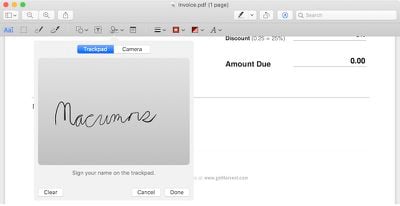
The steps involved to electronically sign a PDF using Preview on Mac are quite simple and will save you valuable time, especially if you have multiple documents, contracts, forms or other paperwork to sign. If you are worried that your virtual signature will look bad, rest assured that you can create your signature by using the trackpad or holding up your signature on paper to a Mac's built-in iSight camera.
Steps to Electronically Sign a PDF Using Trackpad
- Open the PDF file you need to sign in Preview.
- Click on the Markup icon (
 ) and then the signature (
 ) icon.
 - Click on Create Signature > Click Here to Begin. Draw your signature on the trackpad. Click any key when finished. Click Done.
- Click on the signature created to insert it into the PDF document. The signature can be moved or resized like a regular image.
Steps to Electronically Sign a PDF Using Camera
- Open the PDF file you need to sign in Preview.
- Click on the Markup icon () and then the signature () icon.
- Click on Create Signature > Camera. Sign your name on white paper and hold it to be visible to the camera. Preview will draw a virtual signature. Click Done.
- Click on the signature created to insert it into the PDF document. The signature can be moved or resized like a regular image.
Tips
- If you are using the trackpad to create your electronic signature, it is recommended that you look at Preview and go slow and steady with your finger to achieve the best result. For an even more precise signature, you can use an iPhone or iPad stylus, preferably one with a fine-tipped ending, to draw your signature on the trackpad.
- Signing a piece of white paper and holding it up to the camera is the easiest way of creating an electronic signature in Preview, although this method does not always yield the best results. The signature will appear inverted when you hold it up to your Mac's camera, but Preview will automatically ensure that it reads properly from left to right.
- You can create an electronic signature in Preview by following steps above even if you do not have a PDF document opened. By default, all electronic signatures that you create are automatically stored in a list on Preview so that you can insert them into future PDFs documents and other files without needing to repeat these steps. Preview can store multiple signatures at once.
- Apple also provides markup tools in the Mail app in macOS to create electronic signatures that can be directly inserted into your emails.
Related Stories
Spotify Users Growing Impatient and Canceling Subscriptions Over Lack of Native HomePod Support
Monday November 22, 2021 10:39 am PST by Sami Fathi
Spotify users are growing impatient with the music streaming giant over its lack of HomePod support, pushing several customers to the brink of canceling their subscriptions entirely and moving to alternative platforms, such as Apple Music. More than a year ago, at the 2020 Worldwide Developers Conference, Apple announced that it would be adding third-party music service support to HomePod. A ...
Deals: Amazon Discounts Every Model of the 2021 12.9-Inch iPad Pro (Up to $150 Off)
Amazon is offering numerous all-time low prices on Apple's 12.9-inch iPad Pro from 2021, starting at $999.00 for the 128GB Wi-Fi tablet. These sales measure up to $150 off, and all models are in stock and ready to ship from Amazon today. Note: MacRumors is an affiliate partner with some of these vendors. When you click a link and make a purchase, we may receive a small payment, which helps us...
Apple Releases iOS 15.1.1 With Call Improvements for iPhone 12 and 13 Models
Wednesday November 17, 2021 10:20 am PST by Juli Clover
Apple today released iOS 15.1.1, a minor update that comes almost a month after the launch of iOS 15.1. The iOS 15.1.1 update can be downloaded for free and the software is available on all eligible devices over-the-air in the Settings app. To access the new software, go to Settings > General > Software Update. According to Apple's release notes, iOS 15.1.1 improves call drop performance...
Best Black Friday Deals Available Now on Apple Watch, AirPods Pro, MacBook Pro, More
Although Black Friday isn't technically until November 26, retailers released a slew of deals over the weekend. It's not always clear if particularly good deals will last all the way through Black Friday and Cyber Monday, or disappear before the shopping holidays, so in this article we're highlighting all of the best Apple-related sales you can get as of today. If anything interests you, we...
There's No Windows for Arm Macs Yet Because Microsoft Has Secret Exclusivity Deal With Qualcomm
Monday November 22, 2021 12:56 pm PST by Juli Clover
Microsoft has declined to make a version of Windows 11 available for Apple's M1, M1 Pro, and M1 Max Macs that are built on an Arm architecture, and now we may know the reason - a secret exclusivity deal with Qualcomm. According to XDA-Developers, Arm-based Windows has only been made available on devices with Qualcomm SoC's because of a previously unknown deal between the two companies....
How To Create A Digital Signature In Preview
Source: https://www.macrumors.com/how-to/digitally-sign-a-pdf-using-preview-on-mac/
Posted by: solisviturts.blogspot.com
0 Response to "How To Create A Digital Signature In Preview"
Post a Comment