

How To Create Wim Image Of Windows 10
Foreword
In order to quickly deploy a large number of PCs with pre-installed software, it is advisable to make a WIM image.
SCCM being flexible on this side, I will introduce you to the two methods I use in everyday life.
The manual method and the "Build & Capture" method
1 - The manual method
It's the "old-fashioned" method, we install the OS, configure the software, then capture the image, this is the method I mainly use, because where I work we have applications which must be specifically configured or licenses configured, without the possibility of automation.
To do on the SCCM server
Create a USB flash drive or capture ISO image
To do on the PC or VM
OS installation
After the first restart, press the CTRL + SHIFT + F3 keys to restart in "Audit" mode
OS configuration
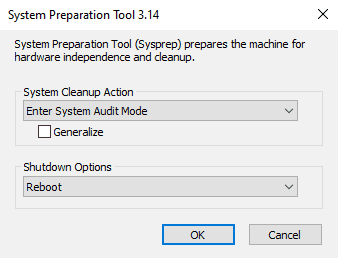
Our computer restarts in Audit mode, be careful when Windows is in this mode, never lock the session, because the Administrator password is not known and it will no longer be possible to go back without starting over.
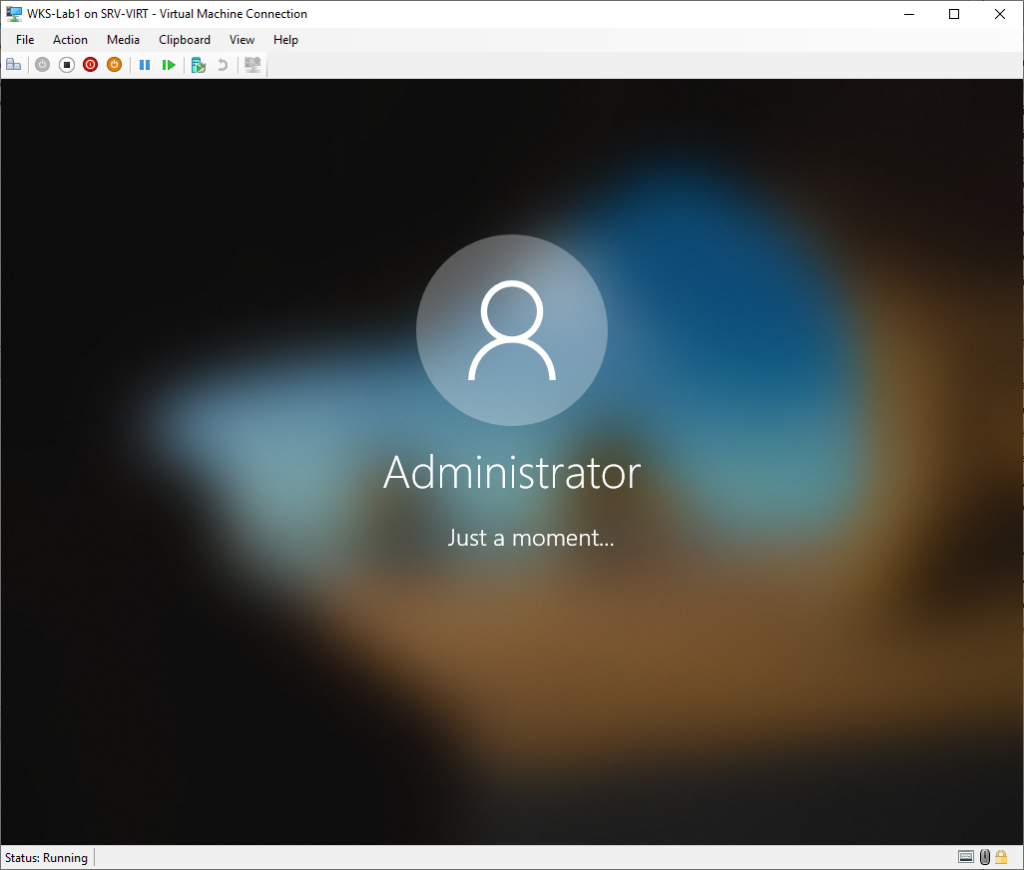
If you need to restart or shut down the PC, you can do so through the Sysprep window by selecting "Restart in Audit mode"
Install the software that you need, configure them if necessary (license, config file, other ...), take advantage to update Windows / Office, then forget to perform a disk cleanup in order to save the place 😉
Image capture
Insert the USB stick or mount the previously created Capture ISO image
Our image is captured, you just have to add it in SCCM, publish it on your distribution points and above all to test and validate it before going into production 😉
2 - The "Build & Capture" method
Your applications must first be packaged and published, otherwise this method is not functional, the great advantage is that it allows us to automatically generate our image without "human" intervention, but for some applications this method does not is not suitable (in my case).
To do on the SCCM server
Creating the Build & Capture task sequence
To do on the PC or VM
Start on the Build & Capture task sequence
Start in PXE or via a USB or ISO stick
Which method to choose?
If you need to make complex changes that can not be automated through custom scripts or MSI, I recommend the 1 (manual) method.
On the contrary if all your applications are packaged and the modifications are scripted or applied by means of MSI, I recommend method 2 (Build & Capture) which will save you a lot of time.
Hoping that this small file has been useful to you 🙂

Founder of StevenBart.com - Vevey, Switzerland.
I have been in IT since 2001, I work as a Workplace Architect and mainly take care of the administration of MEMCM (SCCM), the mass deployment of workstations and applications. Learn more about me.
How To Create Wim Image Of Windows 10
Source: https://stevenbart.com/en/2019/08/09/creer-une-image-wim-master-avec-sccm/
Posted by: solisviturts.blogspot.com
0 Response to "How To Create Wim Image Of Windows 10"
Post a Comment